Smartwatch Troubleshooting Guide: Fixing the Most Common COLMI Problems
Even well-made smartwatches occasionally run into issues. Pairing problems, notifications that stop appearing, heart rate readings that seem off, GPS that won't lock, displays that don't wake on wrist raise — these are the most common issues COLMI users encounter, and most of them have straightforward solutions. This guide covers the main troubleshooting scenarios for COLMI smartwatches and smart rings, walking you through the fixes step by step.
First: Check Which App Your Device Uses
COLMI devices do not all use the same companion app, and using the wrong one is a common reason a device won't pair. Check the product page or the quick-start guide in the box for your model. As examples:
- COLMI Fit: P80, V73, V75 and other recent watches
- FitCloudPro: M42
- Pubu Wear: P71, P85
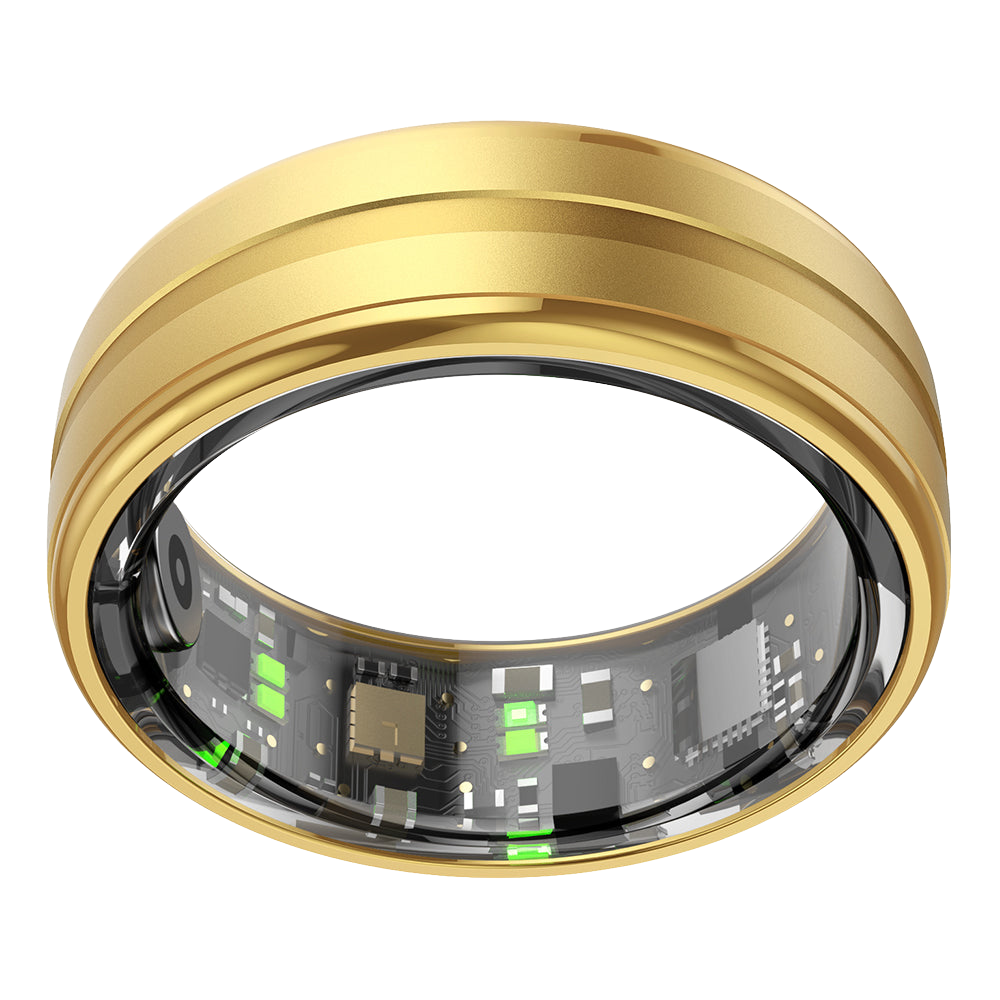
- QRing: COLMI smart rings (the R11 uses Da Rings)
- Da Fit: some older COLMI watches
Throughout this guide, "the app" means the companion app for your model. Menu names and paths vary between apps and firmware versions, so treat the paths below as a guide rather than exact labels.
Pairing and Connection Issues
Device Won't Appear When Scanning in the App
This is the most common setup issue and usually has one of several causes:
- Bluetooth is off on your phone. Go to your phone's Settings → Bluetooth and confirm it's enabled. It sounds obvious, but it is a frequent cause.
- The app doesn't have Bluetooth permission. On iPhone: Settings → [app name] → Bluetooth → On. On Android: Settings → Apps → [app name] → Permissions → Nearby Devices (or Location) → Allow. Without these permissions, the app cannot scan for Bluetooth devices.
- Don't pair from your phone's Bluetooth menu. Add the watch or ring from inside the app, not from the phone's Bluetooth settings.
- The device is already paired to another phone. If it was previously paired elsewhere, unbind it in that app or reset it first. On watches, look for Settings → System → Factory Reset (labels vary by model). Then try pairing again.
- The watch display is off. Press the side button to wake the watch, then scan in the app straight away.
- Too far apart. Keep the device close to your phone during initial pairing.
- Other Bluetooth devices interfering. In busy environments, try pairing somewhere with fewer active Bluetooth devices nearby.
If none of the above resolves it: restart both the watch (Settings → System → Restart) and your phone, then try the pairing process again from the beginning.
Smart Ring Won't Pair or Sync
- Make sure you are using the QRing app (or Da Rings for the R11), not a watch app.
- Place the ring on its charger for a few minutes first; a ring with a flat battery will not be discovered.
- Keep the ring right next to your phone while scanning, and grant the app Bluetooth/Nearby Devices permission.
- If the ring was used with another phone, unbind it there first.
Watch Keeps Disconnecting from Phone
Intermittent disconnection is usually caused by one of these:
- Battery optimisation closing the app in the background. This is a common cause on Android. Fix: Settings → Apps → [app name] → Battery → set to "Unrestricted" or "Don't optimise." The exact menu path varies by phone manufacturer.
- iPhone Background App Refresh disabled. On iPhone: Settings → General → Background App Refresh → enable it for the app.
- Bluetooth range. Bluetooth range is typically around 10 metres in open air and is reduced by walls and obstacles. If your watch and phone are in different rooms, the connection may drop.
- Watch firmware out of date. Check for firmware updates in the app's device settings.
Device Paired but Data Not Syncing
If the device shows as connected but health data isn't appearing in the app:
- Pull down to refresh the app's home screen to trigger a manual sync
- Keep the device close to your phone for a full minute
- Check that the app has the permissions it asks for during setup
- Force-stop and reopen the app, then wait for automatic sync
- If sleep data specifically isn't appearing: check your phone's date and time zone are correct — mismatches can cause sleep records to appear on the wrong day
Notification Issues
Phone Notifications Not Appearing on the Watch
This is one of the most frequently reported issues and is usually permissions-related:
- Notification access not granted (Android). Go to Settings → Apps → Special App Access → Notification Access → find the app and enable it. This is separate from the standard notification permission and is often missed during setup.
- Notifications not enabled for the specific app. In the companion app's device settings, open the notifications/message reminder section and check that each app (WhatsApp, Gmail, etc.) is switched on.
- Phone is in Do Not Disturb or a Focus mode. If your phone is silencing notifications, they may not relay to the watch.
- Watch Do Not Disturb is active. Swipe down from the watch face to see the quick settings panel and check for a DND icon.
- Watch is not connected. Notifications only relay while the watch and phone are connected via Bluetooth.
- Battery optimisation (Android). As above — if Android has closed the app in the background, notifications cannot relay.
Incoming Calls Not Showing or Bluetooth Calling Not Working
Many COLMI watches support Bluetooth calling, including the V72, V73, M42, P80 and P81. If calls aren't showing or you can't answer them on the watch:
- Make sure call notifications are enabled in the app
- On Android: give the app Phone and Contacts permission (Settings → Apps → [app name] → Permissions)
- On iPhone: check the app's permissions in iPhone Settings and allow notifications
- For calling models, the watch's calling audio usually needs its own Bluetooth connection: check your phone's Bluetooth list for the watch's calling/audio entry and make sure it is connected
Heart Rate and Health Monitoring Issues
COLMI watches and rings are wellness devices, not medical devices. Their readings are useful for spotting trends but shouldn't be used to diagnose or treat any condition. If you have concerns about your heart rate, blood oxygen or other health readings, speak to a doctor.
Heart Rate Readings Seem Too High or Too Low
Unexpected readings from optical sensors are most often caused by fit or positioning:
- Watch is too loose. The sensor needs consistent contact with skin. Tighten the strap until the watch stays still on your wrist without being uncomfortable.
- Watch positioned incorrectly. Wear the watch a finger's width or so above the wrist bone rather than on top of it.
- Cold skin. Cold reduces blood flow near the skin surface, which weakens the signal the optical sensor detects. Warm your hands before taking a reading.
- Tattooed skin over the sensor. Dark ink can interfere with optical readings. Try the other wrist or a different position.
- High-intensity exercise. Lots of arm movement can make optical readings temporarily less reliable. This affects optical wrist sensors in general; a chest strap is usually more accurate for interval training.
Heart Rate Not Recording During Sleep
- Make sure automatic/continuous heart rate monitoring is enabled in the app, not just on-demand measurement
- Wear the device to bed with enough strap tension (or the right ring size) for good sensor contact
- Check the monitoring interval setting; a shorter interval records more overnight readings but uses more battery
SpO2 Measurement Showing Error or Not Completing
- Stay still during the measurement — movement can cause an error
- Ensure the device fits snugly with the sensor against your skin
- Warm your hands before measuring in cold conditions
- Try the measurement on the opposite wrist
- Avoid pressing on the watch face during the measurement
GPS Issues (P82, V75, V76)
The P82, V75 and V76 have built-in GPS. Note that the V75 uses the COLMI Fit app; check the product page for the app your model uses.
GPS Won't Acquire a Signal
- Go outside. GPS can't get a satellite signal indoors or under heavy cover. Go outdoors with a clear view of the sky before starting a GPS workout.
- Wait longer for the first fix. The first fix after a long gap can take a minute or more. Stand still in open sky and give it time.
- Restart the watch. If GPS consistently fails, restart the watch and try again outdoors.
- Update firmware. Check for firmware updates in the app's device settings.
GPS Route Looks Wrong or Has Large Gaps
- GPS accuracy drops under dense trees and between tall buildings. Some track deviation in these environments is normal.
- If the entire route is missing, the sports mode may not have been started correctly. Start the sports mode and confirm GPS lock before beginning.
- If the route starts partway through your activity, GPS lock was achieved after you began — wait for lock confirmation next time.
Phone-Connected GPS Not Working (Non-GPS Models)
For COLMI watches without built-in GPS, route tracking (where supported) uses your phone's GPS:
- Set the app's location permission to "Always" (not "While using the app") so it can track in the background during exercise
- Keep the app running in the background throughout your outdoor workout
- Disable battery optimisation for the app so Android doesn't stop the session mid-workout
- Check your phone has a location fix before starting (for example, in your maps app)
Display and Watch Face Issues
Display Doesn't Wake When I Raise My Wrist
- Check that raise-to-wake (lift wrist to view) is enabled in the app or the watch settings.
- The gesture needs a fairly deliberate turn of the wrist towards your face; a gentle movement may not trigger it.
- Some models disable raise-to-wake during Do Not Disturb hours. Check your DND schedule.
Watch Face Won't Download From the App
- Make sure the watch is connected to the app via Bluetooth — face data transfers over Bluetooth
- Keep the watch and phone close together during the download
- Make sure your phone has internet access (the face downloads to the app first, then transfers to the watch)
- If one face keeps failing, try a different one; if others work, the original may have a temporary server issue
Battery and Charging Issues
Battery Draining Faster Than Expected
- Always-on display enabled. AOD is one of the biggest battery consumers. Turn it off if battery life is a concern.
- High screen brightness. Lower the brightness setting.
- Frequent health monitoring. Use a longer automatic measurement interval.
- GPS left active after a workout. Make sure sports mode is properly ended after each session.
- Very cold conditions. Cold temporarily reduces battery performance. Keep the device warm against your skin.
- Many notifications. Each notification wakes the display and vibration motor. Reduce the apps that send notifications.
Device Not Charging
- Check the magnetic charging cable or dock is properly aligned with the charging contacts. If it doesn't snap into place, try the other orientation.
- Clean the charging contacts on both the device and the charger with a dry cloth. Sweat, skin oils and dirt can impair contact.
- Try a different USB power source, such as a mains USB adapter rather than a laptop port.
- If the device appears completely dead, leave it on charge for 15 to 20 minutes before trying to wake it.
Software and Firmware Issues
Watch Frozen or Unresponsive
- Hold the side button for around 10 seconds to force a restart. Many COLMI models restart after a long press.
- If that doesn't work, let the battery run down, then place the watch on charge. It should start up again once charging.
Firmware Update Failing
- Make sure the battery is well charged (above 20% at least) before starting an update
- Keep the device and phone close together throughout the update
- Avoid other Bluetooth-heavy activity on your phone during the update
- If the update fails and the watch appears stuck, wait a few minutes, then try a force restart and run the update again
App Crashes or Won't Open
- Force-stop the app (Android: Settings → Apps → [app name] → Force Stop) and reopen it
- Clear the app's cache (Android: Settings → Apps → [app name] → Storage → Clear Cache)
- Update the app to the latest version from the App Store or Google Play
- If crashes continue, uninstall and reinstall the app. Before you do, make sure you are logged in and your data has fully synced — data that hasn't synced to your account may be lost.
When to Contact Customer Support
If you've worked through the relevant steps above without resolving your issue, the problem may be a hardware fault rather than a settings issue. Contact us if:
- The display has dead pixels, discolouration, or physical damage
- The device won't charge even with a working charger and clean contacts
- Heart rate readings are completely erratic (for example, random spikes to 200+ bpm at rest) even after correct fitting and repositioning
- The device has stopped powering on and won't respond to charging
- GPS consistently fails in open outdoor conditions after firmware updates and restarts
Email us at hello@colmi.store with your order number, model name, and a description of the issue, and we'll work to resolve it under our returns and warranty policy.