The Complete Guide to Using the Da Fit App: Every Feature Explained
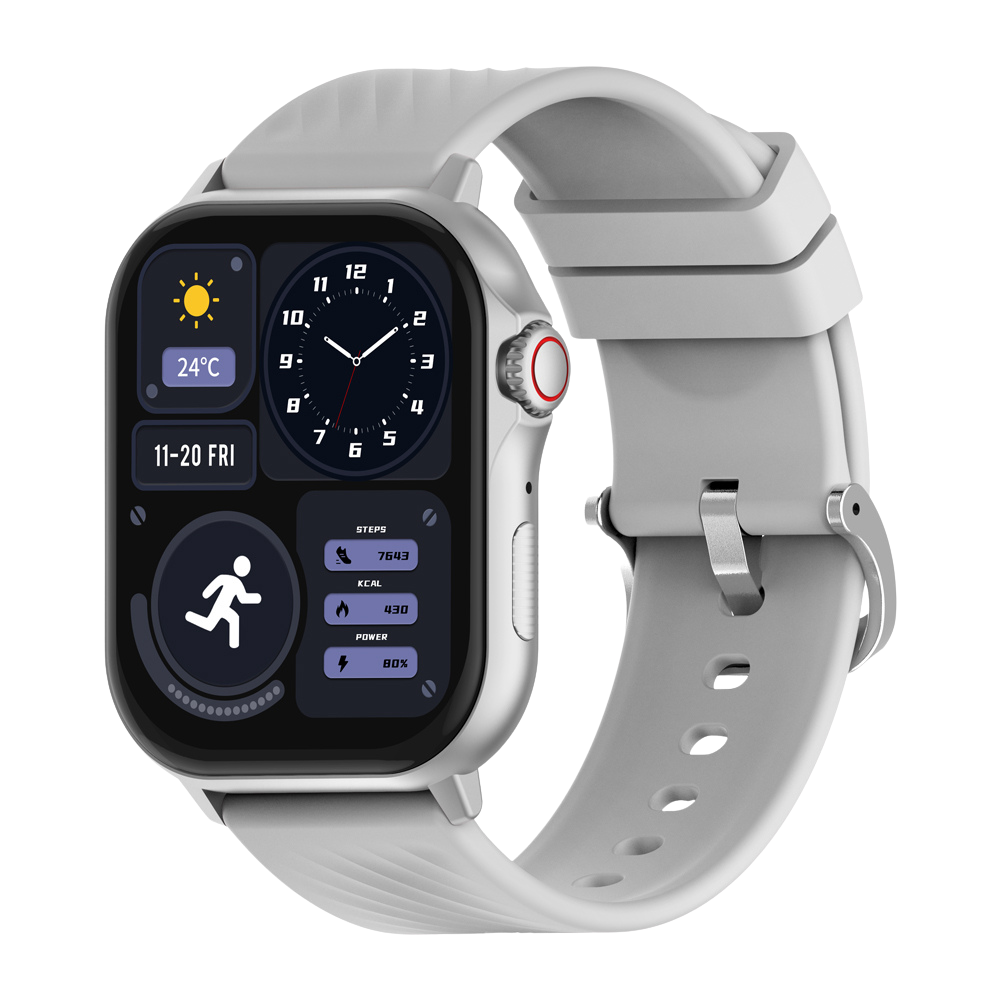
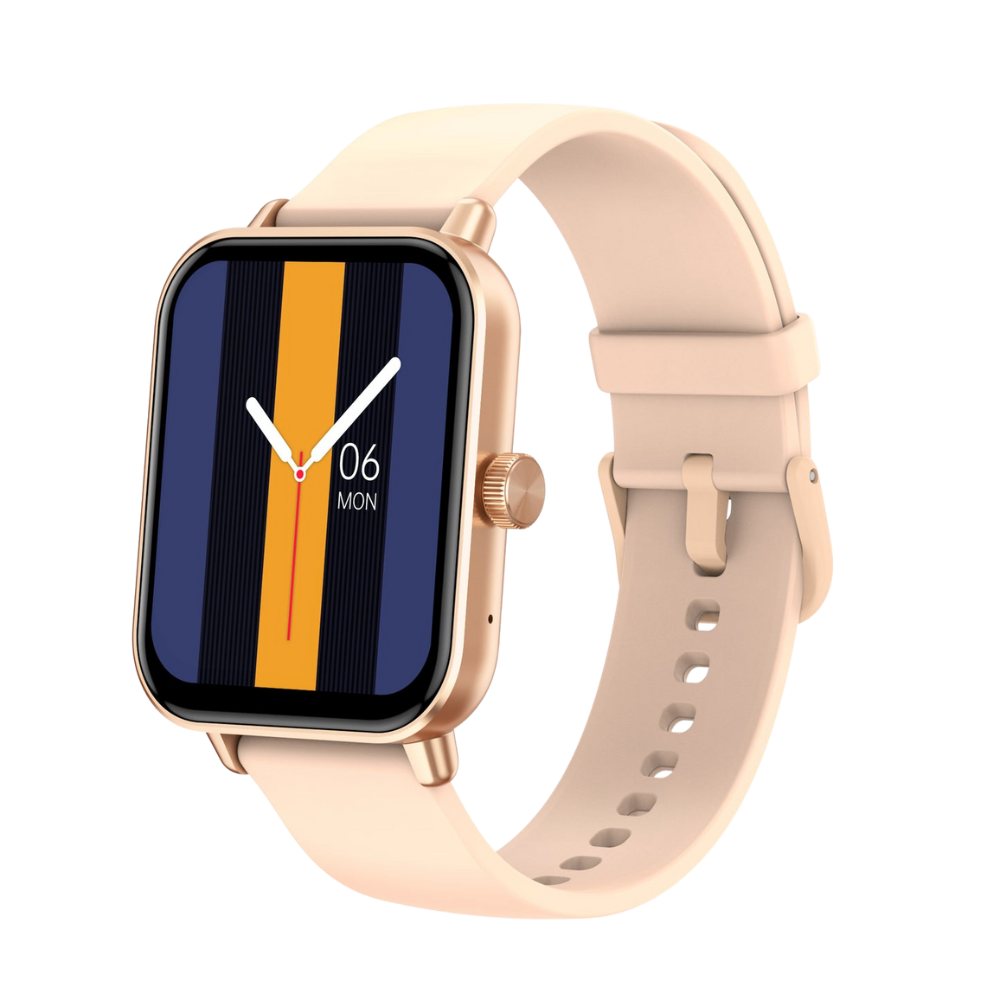
The Da Fit app is the companion application for several COLMI smartwatches, including the V69 and V72. It's the bridge between your watch's sensors and the wellness information you care about: sleep, activity, heart rate, stress and more. Many users only check a sleep score or step count, but the app offers a lot more when you explore it.
This guide walks through the main areas and settings of Da Fit and how to use them to get the most from your COLMI watch. App layouts and menu names change between versions, so the exact labels on your phone may differ slightly from those described here.
Which app does my COLMI use? Not every COLMI device uses Da Fit. The V73, V89, i28 Ultra, C8 Max and P86 use COLMI Fit, the M42 uses FitCloudPro, and COLMI smart rings use QRing (the R11 uses Da Rings). Each product page lists the right app in its App Download tab, and our COLMI app guide has the full list. This guide applies to Da Fit watches only.
Getting Started: App Structure Overview
Da Fit is organised into a few main sections reached from the bottom navigation bar. Typically you will find:
- Home / Health: Your daily summary, showing steps, calories, heart rate, sleep and other metrics at a glance
- Activity / Workouts: Your recorded exercise sessions and history
- Device: Your connected watch's settings, watch faces and notification preferences
- Profile / Me: Your personal data, account settings, goals and app preferences
Most users spend their time in the health summary for daily checks and the device section for configuration.
The Home Tab: Reading Your Daily Health Summary
The Daily Summary Cards
The home screen shows summary cards for each metric your watch tracks. Each card shows today's reading, and tapping a card opens a more detailed view for that metric.
Steps and Daily Activity
The steps card shows your step count for the day along with estimated calories and distance, and how close you are to your daily goal. The detailed view breaks your activity down across the day, so you can see when you were most active and when you were sedentary.
Where weekly or monthly views are available, they are more useful than any single day's count, because they smooth out the natural variation between busy and quiet days.
Heart Rate
The heart rate card shows recent readings, and the detail view plots readings taken across the day based on your monitoring settings.
A useful number to watch is your resting heart rate, usually lowest during sleep or early morning. Over weeks, a gradually lower resting heart rate is commonly associated with improving fitness. Short-term rises can follow poor sleep, stress, alcohol, hard training or feeling unwell. Treat these as general wellness signals rather than a diagnosis, and speak to a doctor if you have any concerns about your heart.
Blood Oxygen (SpO2)
On models that support it, the SpO2 card shows your most recent blood oxygen reading, and the detail view shows your measurement history. Depending on your model and settings, readings may be taken automatically or only when you start a measurement.
Wrist-based SpO2 readings from consumer wearables are estimates and are not medical grade. Movement, fit and cold hands can all affect them. If you have symptoms such as breathlessness, or are worried about your oxygen levels, see a doctor rather than relying on your watch.
Sleep
The sleep card summarises last night's sleep, typically total duration and a breakdown into sleep stages. The detail view usually shows:
- A timeline of your estimated sleep stages across the night (light, deep and, on supported models, REM) and awake periods
- Time spent in each stage
- When you fell asleep and woke up
Looking at several nights together helps you spot patterns, such as shorter sleep on particular days or improvements after changing your routine. Sleep stages from a wrist device are estimates, not a clinical sleep study.
Stress
On models with stress tracking, the stress view shows an estimated stress score based on heart rate data across the day. Looking at the pattern over a week can help you notice which days or situations tend to be more demanding. The score is a wellness indicator only and can't tell you about your mental health; if stress is affecting you, talk to your GP.
The Activity Tab: Workout Analysis
After you record a workout in a sports mode on your watch, the session syncs to the app the next time your watch connects over Bluetooth.
Workout Session Detail
Opening a recorded workout typically shows:
- Session summary: Duration, estimated calories, heart rate and activity type
- Heart rate chart: How your heart rate changed through the session, so you can see warm-up, effort and cool-down
- Route map: On models with built-in GPS, such as the V76 and P82, outdoor sessions can show your route and distance
The exact data shown depends on your watch model and app version.
Tracking Over Time
Reviewing how many workouts you do and how long they last over weeks and months gives you a clear picture of whether your activity is increasing, stable or dropping off.
The Device Tab: Configuring Your COLMI Watch
The device section is where you manage the settings for your connected Da Fit watch.
Watch Face Management
Open the watch face section to browse and install downloadable faces. Choose a face and send it to your watch over Bluetooth; it usually takes a short while to transfer.
Battery tip: On watches with an AMOLED screen, a dark-background watch face generally uses less power than a bright one, because black pixels on AMOLED are switched off. Check your product page to see which screen type your model has.
Notification Settings
In the notification settings you can choose which phone apps send alerts to your watch. A good approach is to enable only the notifications you genuinely want on your wrist:
- Enable: Phone calls, SMS and your main messaging app
- Consider disabling: Social media, promotional apps, news and games
Start with a few and add more only if you find yourself missing something important.
Heart Rate Monitoring Settings
Depending on your model and app version, you may be able to set how often your watch measures heart rate automatically. More frequent measurement gives more detailed data but uses more battery.
Some versions also offer heart rate alerts. These are general wellness reminders, not medical monitoring, and should never be relied on to detect a heart condition. If you have a known heart condition or symptoms such as dizziness, palpitations or chest pain, seek medical advice.
Sedentary Reminder
The sedentary reminder vibrates if you haven't moved for a set period. Where active hours can be set, match them to your day so you aren't reminded during sleep or leisure time.
Alarm Settings
Alarms set in Da Fit sync to the watch and wake you with a vibration on your wrist, which is handy if you don't want to disturb a partner.
Display Settings
Depending on your model, you can adjust brightness, raise-to-wake and how long the screen stays on. Lowering brightness and screen-on time are among the most effective ways to extend battery life.
Do Not Disturb
Set a Do Not Disturb schedule to silence notifications during your sleep hours, so vibrations don't wake you. Sleep tracking continues as normal.
Firmware Updates
Check for firmware updates in the device section. Updates can include bug fixes and improvements. Keep your watch charged and close to your phone during an update.
The Profile Tab: Personal Data and Health Goals
Personal Information
Make sure your age, height, weight and sex are correct. These values are used to estimate calories and distance, so keep them up to date.
Daily Goals
Set a realistic daily step goal. If you currently average 5,000 steps, a goal a little above that is easier to stick to than jumping straight to 10,000. Raise it once you're meeting it consistently.
Health Data Sync
Depending on your phone and app version, Da Fit may offer syncing with Apple Health or Google's health platforms. Check the profile or settings section of your app to see what's available.
Advanced Tips
Keeping a Personal Health Journal
A simple way to keep a long-term record is to take screenshots of your weekly or monthly views at regular intervals, for example once a month. Comparing these over a few months makes trends easy to see.
Using a Smart Ring Alongside Your Watch
COLMI smart rings use their own app (QRing, or Da Rings for the R11) rather than Da Fit, so ring and watch data are kept in separate apps. If you wear both, a practical approach is to use the ring overnight for sleep tracking and the watch during the day, and review each app's summaries side by side.
Sharing Your Data With a Doctor
If you're seeing your GP about sleep, heart rate or stress, you can bring screenshots of your trends as background information. Your doctor will decide how relevant it is; consumer wearable data does not replace a medical assessment.
Troubleshooting Common Da Fit Issues
Watch Not Syncing
Make sure Bluetooth is on, then close and reopen Da Fit. On Android, check that battery optimisation isn't stopping Da Fit in the background, and exclude the app from battery optimisation if needed.
Notifications Not Appearing on Watch
Check that Da Fit has notification access in your phone's settings (on Android this is usually under Special App Access, then Notification Access), and that Do Not Disturb isn't active on the watch.
GPS Route Not Recorded
On watches with built-in GPS, start outdoor workouts in an open area and wait for the watch to get a GPS signal before you set off. Tall buildings and dense trees can weaken the signal. If routes still don't appear in the app, make sure Da Fit has location permission and isn't being closed by your phone's battery management.
Heart Rate Readings Seem Inaccurate
Wear the watch snugly with the sensor against your skin, a finger's width above the wrist bone. Cold skin reduces blood flow and can affect optical readings, so let your hands warm up before taking a resting measurement.
Getting the Most From Da Fit: A Weekly Routine
A simple routine turns the app from a passive data store into something useful:
- Each morning (2 minutes): Check your sleep summary and note anything unusual compared with your normal pattern.
- After each workout: Look at your session heart rate chart to see how hard you worked.
- Weekly (10 minutes): Review your weekly trends for resting heart rate, sleep and steps, and pick one small habit to work on in the coming week.
A few minutes each week with your data makes you an active user of your wellness information rather than a passive collector of numbers. Remember that COLMI watches are wellness tools, not medical devices. If you have any questions about your watch, email us at hello@colmi.store.